Grok Imagine: vídeo e imagen con reescalado opcional
Sobre Grok Imagine
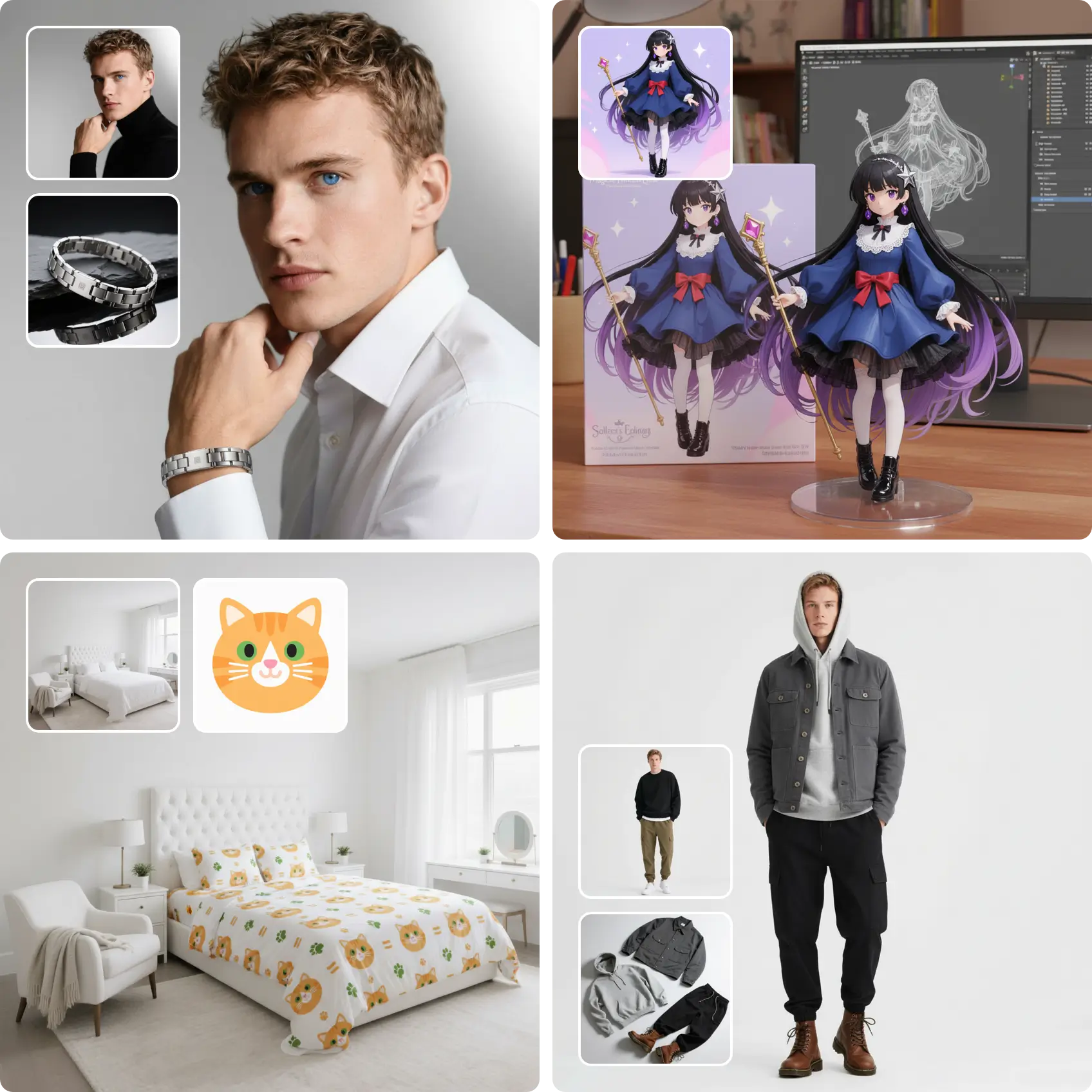
Grok Imagine is xAI's media model, and this page runs three modes: text to video, image to video, and text to image. Video runs take one of three presets, Fun, Normal or Spicy, plus an optional upscale from 360p to 720p. Frames are 2:3, 3:2 or 1:1, and the price is shown before a run starts.
This is the video page that opens in portrait. The default frame is 2:3, the shape of a phone screen, and there is no quality tier to weigh up first: one model, one price per mode, and a single upscale switch that raises the resolution for an extra charge. That makes it the page for volume, for testing a motion idea in the shape it will be published, and for clips that need to go out before a slower model would finish.
The three modes ask for different things. Text to video needs a prompt and nothing else. Image to video needs one still, accepted as PNG, JPG or WEBP up to 10 MB, and the prompt is optional there, so a good photograph can move without any direction. Text to image is the still mode and returns a set of images from one prompt. The Fun, Normal and Spicy presets appear only on video runs, and they change the treatment rather than the model. Video prompts stop at 5,000 characters, enough for a paragraph of motion and camera notes.
Compared with the other video pages here, Grok Imagine trades polish for turnaround. Veo 3.1 splits Fast and Quality and is the better choice when a clip has to survive a full-screen viewing. Sora 2 is built around longer, more cinematic sequences. Grok Imagine starts at 200 credits for a video run, below the cheapest Veo 3.1 tier, and only reaches 300 when the upscale is left on. For animating a still for a story, a product teaser or a quick test of a camera move, that is usually the right trade.
The button carries a short guard. A second press within a few seconds of the first is ignored and reports a rate limit, which stops a double click from starting two paid jobs. After that the run leaves the browser, and the progress panel is the only place the result appears, so keep the tab open until it settles. When the file or the image set arrives, the same panel offers the download. Waiting a moment before pressing again is part of the workflow rather than a fault.
Image to video asks for the least. The upload is required and the prompt is not, so a photograph can be animated with no direction at all and the result relies on whatever motion the model reads from the frame. Add a sentence only when you want movement the picture does not already imply: a slow push in, a head turn, a hand leaving the frame. Mind the frame as well. Each mode sets its own default ratio, portrait for video and landscape for stills, and switching modes resets it, so check before you press.
Cómo funciona Grok Imagine
- 1
Pick the mode
Text to video, image to video or text to image. The chosen mode is stored in the URL, so a shared link opens on the same tab instead of the default one.
- 2
Supply a prompt, a still, or both
Text to video requires a prompt. Image to video takes one upload and treats the prompt as optional motion direction. Text to image returns a set of stills from the prompt alone.
- 3
Choose ratio, preset and upscale
Video defaults to 2:3 and stills to 3:2. Pick Fun, Normal or Spicy, with Normal selected. Upscale is on by default and adds 100 credits to a video run; turn it off for the base price.
Para qué sirve Grok Imagine
Vertical social clips
2:3 matches a phone screen, so a clip is framed for stories and shorts from the first render instead of being cropped into shape later.
Animating a single still
A portrait, a product shot or a poster frame becomes motion with one upload. The prompt only has to describe where the movement goes.
Cheap motion tests
Try a camera move or a gesture at 200 credits before sending the same idea to a pricier model, and keep the version that reads best.
Still sets for thumbnails
The text-to-image mode returns a set of images at 3:2 by default, which suits blog headers, list thumbnails and end cards.
Grok Imagine de un vistazo
- Model
- xAI Grok Imagine, run through KIE
- Credit cost
- 200 per video run, 40 per image run, 100 for upscale
- Modes
- Text to video, image to video, text to image
- Aspect ratios
- 2:3, 3:2, 1:1
- Video presets
- Fun, Normal and Spicy, with Normal as the default
- Inputs
- Prompt up to 5,000 characters; one PNG/JPG/WEBP still up to 10 MB for image to video
Preguntas frecuentes sobre Grok Imagine
- How much does a Grok Imagine run cost?
- A video run is 200 credits and an image run is 40. The upscale switch is on by default and adds 100 credits to video only, so the panel shows 300 until you turn it off. Signing up adds 300 bonus credits, a free account gets 50 credits for each day it logs in with a 30-day expiry, and Starter runs $4.90 a month for 300 credits.
- What do Fun, Normal and Spicy change?
- They are three presets passed to the video model, not three separate models, and Normal is selected by default. Run the same prompt through each and compare the result instead of assuming one ranks above the others.
- Can I animate my own photo?
- Yes. Image to video accepts one PNG, JPG or WEBP file up to 10 MB. The prompt is optional in this mode, but a sentence about the motion, such as a slow push in or a head turn, gives the model a target.
- What does the upscale switch do?
- It boosts a video from 360p to 720p for 100 extra credits. It starts switched on, so a video run reads 300 credits until you turn it off. Text to image does not use it.
- How does Grok Imagine compare with Veo 3.1 and Sora 2?
- Grok Imagine is the cheaper, faster, portrait-first option and has no quality tier. Veo 3.1 offers Fast and Quality tiers and is the page for polished footage. Sora 2 is built around longer cinematic sequences. Test the idea here, then move a winner to whichever of those fits the brief.
- Why did my second press on the generate button do nothing?
- A press that lands within a few seconds of the previous one is dismissed with a rate-limit message, and while a job is running the button stays disabled until the result arrives. Neither case starts a hidden run or takes a second charge. If the panel shows no progress after a while, wait for the job to settle rather than pressing repeatedly, because each accepted press starts a fresh paid run instead of continuing the one in flight.